

Download TabNavigator – Enhanced Ctrl‑Tab navigation for Firefox
Overview and Why TabNavigator Matters
TabNavigator is a lightweight Firefox extension that reimagines the classic Ctrl‑Tab shortcut. While the default Firefox behavior lets you jump to the next tab, it offers no visual clue about what each tab contains. This can become a productivity nightmare when you have dozens of tabs open and need to locate a specific page quickly.
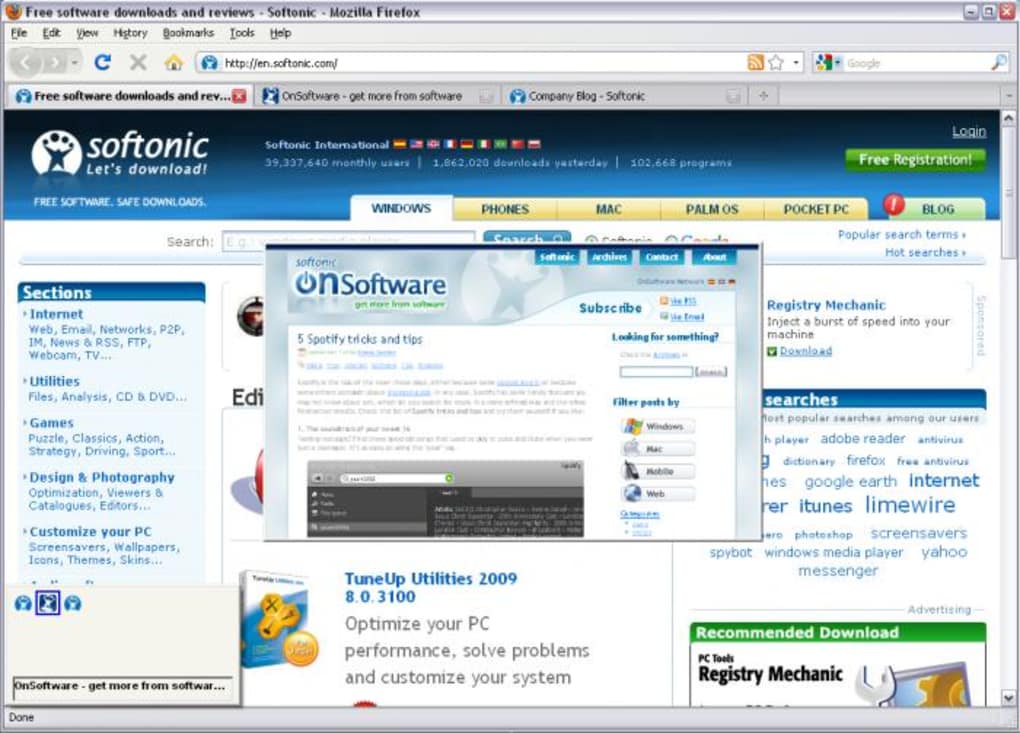
TabNavigator solves that problem by presenting a preview—either a thumbnail snapshot or a crisp icon—of each tab directly in the switcher menu. The extension does not hijack the native Ctrl‑Tab key combo; instead, it provides a customizable hotkey that can be set to match the default shortcut or any other key combination you prefer. By giving you a visual cue before you commit to the switch, TabNavigator reduces the cognitive load of tab hunting, speeds up navigation, and helps keep your workflow fluid.
The extension is free to download, updates automatically through Mozilla’s add‑on portal, and respects Firefox’s security model, ensuring that no external data is transmitted without your consent. Though the current experimental release shows a slightly rough UI and the larger icons can appear pixelated on high‑resolution displays, the core functionality is solid and already a noticeable upgrade for power users who rely on keyboard navigation. As Firefox continues to evolve, having a tool that brings visual context to the Ctrl‑Tab experience is a game‑changer for anyone juggling many research tabs, development consoles, or media streams.
Key Features and Customization Options
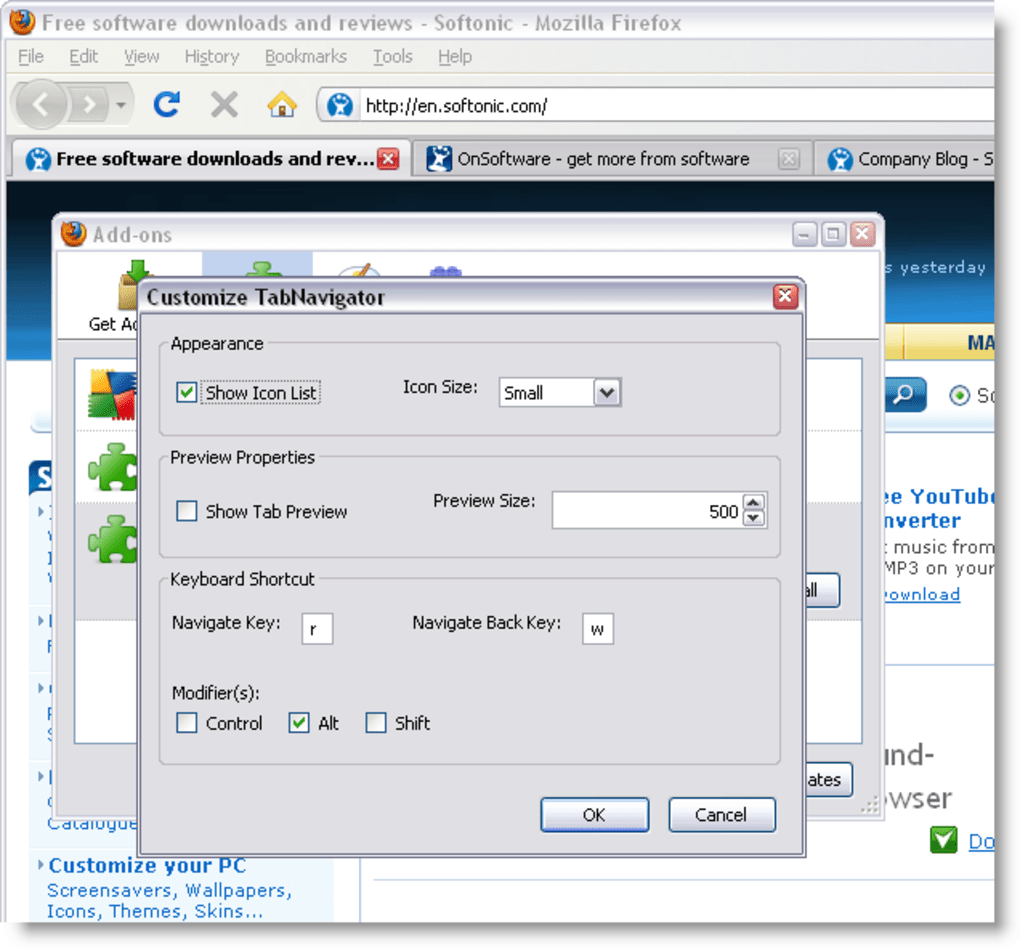
- Live Tab Previews: Choose between a miniature thumbnail or a simple icon for each open tab, giving you instant visual feedback.
- Custom Hotkey Support: Map the navigation shortcut to any key combination, including the default
Ctrl+Tab, to fit your personal workflow. - Adjustable Thumbnail Size: Select small, medium, or large preview dimensions to balance between detail and screen real estate.
- Icon‑Only Mode: For minimalists, switch to an icon‑only view that displays each site’s favicon, reducing visual clutter.
- Keyboard‑First Navigation: Navigate the preview list using arrow keys, then press
Enterto jump to the chosen tab. - Automatic Refresh: Thumbnails refresh in the background, ensuring that the preview reflects the latest page state.
- Privacy‑Centric Design: All preview rendering happens locally within Firefox; no screenshots are sent to external servers.
- Seamless Integration: Works alongside other tab‑management extensions without conflict, preserving your existing setup.
Beyond the core feature set, TabNavigator offers a small but useful preferences pane where you can fine‑tune the appearance and behavior. Users can toggle the display of the preview panel on or off, set a maximum number of tabs to show (useful for those who habitually open 50+ tabs), and enable a “dark mode” preview that matches Firefox’s theme. The extension also respects Firefox’s built‑in “container tabs” feature, showing distinct previews for each container, which is a boon for developers testing multiple environments. While the UI still feels experimental, the flexibility to swap between thumbnails and icons, coupled with the ability to assign a personalized hotkey, makes TabNavigator a versatile addition to any Firefox power user’s toolkit. Whether you’re a researcher flipping between academic articles, a marketer comparing campaign dashboards, or a developer juggling documentation, the visual cue provided by TabNavigator can shave seconds off each tab‑switch, adding up to noticeable time savings over a full workday.
Installation, Usage Instructions, Compatibility & Pros / Cons
Step‑by‑Step Installation
Installing TabNavigator is straightforward. Open Firefox, navigate to the TabNavigator add‑on page, and click the “Add to Firefox” button. A permission dialog will appear, summarizing the access required (primarily the ability to read tab URLs and capture thumbnails).
Click “Add” and then “Okay” to complete the installation. Firefox will automatically download the latest version, and you’ll see a small TabNavigator icon appear in the toolbar. No manual updates are required; the extension follows the standard Mozilla update cycle, checking for new releases each time Firefox starts.
Getting Started with the Hotkey
After installation, open the extension’s options page by clicking the toolbar icon and selecting “Preferences.” Here you can assign your preferred hotkey. The default setting mirrors Ctrl+Tab, but you might prefer Alt+Tab or any other combination that doesn’t conflict with existing shortcuts. Once set, simply press the hotkey while browsing.
A horizontal strip of tab previews slides into view, showing either thumbnails or icons based on your selection. Use the left and right arrow keys to cycle through the list, and press Enter to activate the highlighted tab. If you prefer mouse interaction, click directly on a thumbnail or icon.
Compatibility Details
Supported Platforms: TabNavigator runs wherever Firefox runs, including Windows 10/11, macOS (Catalina and later), and most Linux distributions with a recent Firefox build. The extension is built using WebExtensions APIs, ensuring consistent behavior across all supported operating systems. It does not support Firefox for Android or iOS, as those platforms lack the necessary API surface for thumbnail rendering.
Pros and Cons
- Pros
- Instant visual preview reduces guesswork when switching tabs.
- Highly customizable hotkey and preview size.
- Lightweight and free, with no hidden fees.
- Privacy‑first: all rendering is local.
- Works well with container tabs and other extensions.
- Cons
- Thumbnail rendering can be slightly delayed on older machines.
- Large icon size appears pixelated on high‑DPI screens.
- UI still feels experimental; visual polish is limited.
- No support for mobile Firefox browsers.
FAQ and Final Thoughts
Does TabNavigator collect any personal data?
No. All thumbnail generation happens locally within Firefox. The extension does not transmit screenshots, URLs, or browsing history to external servers.
Can I use TabNavigator with Firefox’s built‑in “Private Browsing” mode?
Yes. The extension respects private windows and only creates previews for tabs that are open in the same private session. No data is stored after the window is closed.
Is there a way to disable the preview panel temporarily?
Absolutely. In the options page you can toggle the “Enable preview panel” switch. When disabled, the hotkey will behave like the default Firefox Ctrl‑Tab action.
How often are updates released?
TabNavigator follows Mozilla’s standard update cadence, typically receiving bug‑fixes and minor feature enhancements every 4‑6 weeks. Major UI overhauls are announced on the add‑on’s changelog page.
Can I use TabNavigator alongside other tab‑management extensions?
Yes. Because TabNavigator only adds a preview overlay and does not interfere with tab ordering, it works smoothly with popular extensions like Tree Style Tab, OneTab, and Tab Mix Plus.
In summary, TabNavigator fills a noticeable gap in Firefox’s native tab navigation by providing a visual preview that speeds up decision‑making. While the UI could benefit from a polish pass and high‑DPI icon rendering, the core functionality is robust, privacy‑aware, and completely free. If you frequently juggle multiple tabs and rely on keyboard shortcuts, giving TabNavigator a try can make your browsing sessions feel more controlled and less chaotic. Download TabNavigator today from the official Mozilla Add‑ons site, configure your preferred hotkey, and enjoy a smoother, more informed tab‑switching experience.







